Collaboration - Team Drive vs Google Drive Folders

The ability to share and collaborate on files is what makes Google Drive such an incredible resource for teachers and students.

Google Classroom is a great way for a teacher to share files with students, but what about working with a collaborative team of co-workers or students working in collaborative teams? When Google Classroom does not meet your needs, what are the advantages/disadvantages of choosing a Team Drive Folder or a Google Drive Folder?

We've created a document to help users navigate sharing folders using G Suite. This document is a work in progress and will continue to evolve as Google Drive updates. If you have suggestions or comments about this document, please share them in the comments below. 

Folder Options in Google Drive Overview


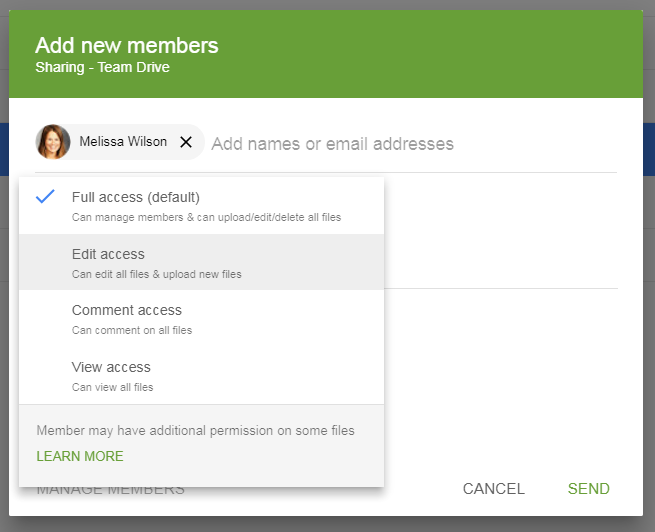
Additional Details about Team Drive.
  • Team Drive is great for sharing with a team of collaborators. Drive folders are better if you want to share view access to anyone with link or make them public.
  • The greatest advantage to Team Drives is the fact that editors cannot delete or move files.
  • The ability to quickly share files with viewers who are not part of the team drive is limited. You can not provide a View/Comment Link to folders in Team Drive. You can provide a view link to individual documents, but this needs to be set for each document. You cannot share files via email in Team Drive.
  • Some add-ons and drive features do not currently function in Team Drive.
  • In Team Drive the files and folders in trash are automatically deleted forever after 30 days. Only someone with Full Access can delete files permanently in trash.
  • We recommend team drives for collaborative teacher teams and Google Drive Shared folders for student/parent shared resources. (View access)

Additional Exploration


Team Drive Sharing Setup


Sharing Individual Documents in Team Drive


Advanced Sharing Settings in a Team Drive Documents


Drive Folder Sharing Setup


Advanced Drive Folder Sharing Setup


Exploring Additional Resources Connected to HyperDocs


If you know me, you know that I love all things HyperDoc. I share resources connected to HyperDocs whenever I have something new to share. Today, I want to focus on the incredible educators who are doing so much more with HyperDocs. The links below are connected to educators and resources that influenced my growth as a HyperDoc Learner. 


Getting Started with HyperDocs
Educators can start a new HyperDoc with one of a HyperDoc Template from Teachers Give Teachers. Karly Moura has created a great HyperDoc Handbook Template Companion connected to a HyperDoc Template.

Educators can also share and remix with credit an existing HyperDoc from one of these resources: 

I personally love both the Teachers Give Teachers Site and the HyperDoc Google + Community the most for a couple of reasons.
  1. They are searchable and organized by categories.
  2. They usually contain a view link that can be remixed to the live HyperDoc and not just a copy.
Diving Deeper Into HyperDoc Resources

Please share additional HyperDoc Resources or Sample HyperDocs in the Google+ HyperDoc Community or in the comments below.

Google Drive - Fast and Powerful Tips for Searching your Drive

Search Tools
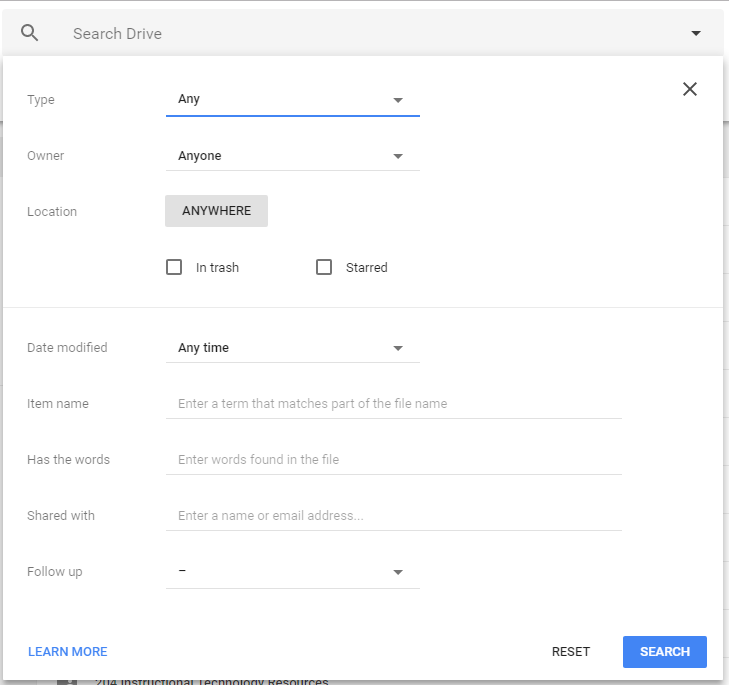
Good Drive has search features similar to the full Google Search. Additionally, clicking on the down arrow in the search box of Google Drive will open up additional search features.
Clicking on “LEARN MORE” will open up a searchable help menu for drive search.

Searching the Drive

To find files more easily in Drive, you can narrow search results by filtering them.
  1. At the top, type a word or phrase into the search box.
  2. To narrow your search, click the Down arrow .
  3. Fill out any of the following sections:
    • Type: File types such as documents, images, or PDFs.
    • Date modified: The date a file was last edited.
    • Item name: Searches only for the title of the file.
    • Has the words: Searches for words and phrases within documents.
    • Owner: The person the file belongs to.
    • Shared with: Who can view, comment, or edit the file.
    • Located in: Whether the file is in "Trash," or "Starred," for example.
    • Follow up: If the file has action items assigned to you, or suggestions in files you own.
  4. At the bottom, click Search.
Advanced Searching Options

Quotes - Find documents that contain an exact word or phrase.

Example: "match this phrase exactly"

OR - Find files with at least one of the words.

Example: tacos OR nachos

Minus sign - Find documents that exclude a particular word. If you want "salsa," but not "dancing"...

Example: salsa -dancing

Owner: - Find documents owned or shared by a specific person.

Examples: owner:bob@gmail.com      /       from:bob@gmail.com

To: - Find documents you shared with someone.

Example: to:bob@gmail.com

Is:starred  - Find items marked with a star.

Is:unorganized owner:me - Find a file when you don’t know the name or location.

Is:trashed - Find items that are trashed.

Type: - Search by the type of document: folder, document, spreadsheet, presentation, PDF, image, video, drawing, form, script, or table.

Example: type:spreadsheet

Before & after -  Find items that were edited before or after a certain day. Format the date as YYYY-MM-DD.

Examples:    before:2014-05-01  / after:2014-05-01

Title: - Search by title

Example: title:Conference 2014

App: - Search for items that can only be opened by a specific app.

Example: app:"Google Docs"

Source:domain (Google for work or school) - Search for items that have been shared across your organization’s entire domain, instead of items created by you or your group.

Example: To search for files related to domain, use source:domain

Exploring FlashCard Factory by Pear Deck


I recently discovered Pear Deck FlashCard Factory and gave it a test run with my students. While not perfect, my students loved it and are begging me to use it again as soon as possible. (I have mostly High School Seniors in class this year.)

Our first experience with Pear Deck Vocabulary earns a thumbs up!

Long Story Short
In Flashcard Factory student pairs are randomly assigned a vocabulary term and definition. They then create a new flashcard that includes a written example and a digital sketch. They collaborate and when finished submit the flashcard. They are then assigned another term and repeat the process until the teacher ends this 'Production Phase. We then approve or reject the cards during a whole class discussion in the 'Quality Control Phase'. Finally, the approved cards are exported to Quizlet as a study set.

How To
Pear Deck has an incredible step by step tutorial to create your Flashcard Factory, so I won't bore you with the details of putting one together.


The Results

What we liked?
  • It connects to Quizlet. You can copy a Quizlet set directly into the creation of the Flashcard Factory
  • It exports the "approved cards" to Quizlet. Here is a sample exported Quizlet from our activity.
  • The whole class discusses each submitted flashcard and we approve or reject the cards. We enjoyed the discussion. 
  • The students enjoyed the competitive aspect connected to be on the day or the night shift. 
  • The students liked the collaboration between pairs. They felt it helped them better understand and apply the vocabulary. 
What could be improved?
  • Once the initial group page is passed, there is no way to I could see who was on which team. 
  • Some students really struggled with drawing with the touchpad or a mouse. (We don't have touchscreens yet.)
  • There is no data to connect students to the flashcards they created. You need to have students admit that they are the creators when the card is projected if you want to know who owns what. 
  • Only the teacher can approve or reject. We would love to have the ability to let students vote on their screens. 
  • A few student screens froze in the drawing phase during each class. We lost those drawings and the students had to start over. We did not master a solution to this yet. 
Have you tried out Pear Deck Vocabulary Factory? How did it go? Please share your thoughts in the comments below.

Additional Connections


A New Google Secret - Poly: Browse, Discover, and Download 3D Objects


Google just released a new site (Poly) connected to 3D Images for AR and VR. These technologies have pushed into classrooms and I wanted to share this resource. At the very least the ability to download these as animated GIFS that can be incorporated into sites, docs, slides . . . 


How could you incorporate this resource into your classrooms? Please share below. 

Top Posts