June Book of the Month - The Growth Mindset Coach by Annie Brock & Heather Hundley

The best educators are not content to do the same old thing year after year. Innovative educators push their thinking by engaging in social media, exploring blogs, attending conferences, and exploring the newest generation of educational books.
We've created a site to organize and share some great books connected to teaching and learning. Each month we will feature a new book from our PLN. Have an idea for our next book of the month? Please share in the comments below.

Created by teachers for teachers, this is the ultimate guide for unleashing students’ potential through creative lessons, empowering messages and innovative teaching. The Growth Mindset Coach provides all you need to foster a growth mindset classroom, including:
  • A Month-by-Month Program
  • Research-Based Activities
  • Hands-On Lesson Plans
  • Real-Life Educator Stories
  • Constructive Feedback
  • Sample Parent Letters
Studies show that growth mindsets result in higher test scores, improved grades and more in-class involvement. When your students understand that their intelligence is not limited, they succeed like never before. With the tools in this book, you can motivate your students to believe in themselves and achieve anything.


Tuesday Tip of the Week - Page Setup in Google Docs and Slides

Last week I shared a tip about Outline View in Google Docs. This week it will be all about page setups for Docs and Slides.

Creating a HyperDoc, Tutorial, or other activity using Google Docs? Maximize your creative space with Page setup. 
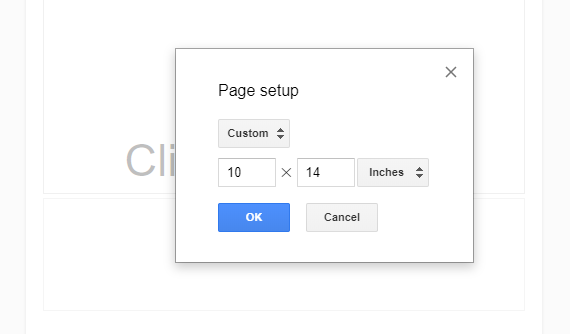
Did you know that you can set the margins and page size in Google Docs to maximize the space you have on each page? My default Page setup for Google Docs is Paper size 8.5" x 14" and margins are all at 0.2. (Some people go 0 on the margins but I like a bit of an edge on my docs.)
You can find the "Page setup" options in the "File" menu in Google Docs. You can get help here or by watching this quick video tutorial

Bonus: You can still print the page if needed. Everything is automatically shrunk to fit the page size you are printing. 

Google Slides is a great presentation tool, but it is so much than a presentation tool. Slides is a great resource to create memes, infographics, and more. 
When creating more than just a presentation, changing to a custom Page setup can really change how one works in Slides. I love Square slides for Memes and I often go 10 x 14 when we are creating infographics with slides. 


You can find the "Page setup" options in the "File" menu in Google Docs. You can get help here or by watching this quick video tutorial

How would you use different Page setups in your classroom? 

Developing a Future Ready Classroom With the 4 Cs - Free Flipped PD Opportunity

The skills connected to collaboration, communication, critical thinking, and creativity are essential for all students. The best classroom activities engage students in content while providing opportunities to practice the 4Cs in learner-centered environments.

The best professional development also models the 4 Cs for staff. We've created a free flipped PD HyperDoc to connect educators to 4 Cs resources and experiences. Let us know what you think in the comments below. 


Share Your Learning Experience
Learn something new? Have a resource to share? Maybe a question? Please engage in the conversation using one or more of these resources.


Curiosity Question of the Week - What Makes You Unique?

"Embrace your uniqueness. Time is much too short to be living someone else's life." Kobi Yamada

4 weeks ago I got rolling with a curiosity question of the week. You can learn more about my why in this post

Last week's question had some great responses. 


If you could only choose one television series box set to watch during this time, what would you choose? Why?


Here is this week's question. I am hoping we can all dive a bit deeper into what makes us unique. 


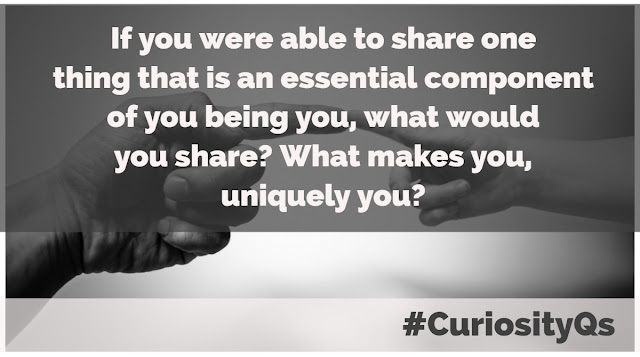
If you were able to share one thing that is an essential component of you being you, what would you share? What makes you, uniquely you?


Please share your answer and your why in the comments below or using the Hashtag #CuriosityQsEach Tuesday I will share a new question that I hope will inspire you to share your thoughts and maybe explore something new. 

If you have a great question that I can ask, please DM me on Twitter. Full credit will be given for all questions that I share that are not my own. 


Spoiler Alert 
I usually wait a few days to share my thoughts, but I needed this quote in the post. This is all subject to change.  May all your summer days be curious ones. 


Tuesday Tip of the Week - Outline View in Google Docs

Many people insert a table of contents when working with larger Google Docs. This can a great way to provide viewers with an overview of the document and help them get to where they need to be, but there are a few drawbacks.
  • The table of contents sometimes eats up too much valuable space on the first page of the document.
  • The table of contents is only visible on the first page and the creator either needs to create a link to return to the table of contents in the document or the viewer needs to scroll back to the first page to access the table again.
For these two reasons, I prefer the document outline feature. The outline opens in the space on the side of the document and remains open as you scroll through the resources. The document outline can be accessed in the view menu and like a table of contents, it is connected to headings created in the document. 
  • You can learn the in and outs of the document here
  • Google also has an excellent help video embedded in Docs. 
  • If you curious about Document Outlines, I would recommend opening one of your existing documents or creating a new Doc to explore document outlines. I also have two samples you can view but not edit below. 


Top Posts