A New Google Secret - Poly: Browse, Discover, and Download 3D Objects


Google just released a new site (Poly) connected to 3D Images for AR and VR. These technologies have pushed into classrooms and I wanted to share this resource. At the very least the ability to download these as animated GIFS that can be incorporated into sites, docs, slides . . . 


How could you incorporate this resource into your classrooms? Please share below. 

Video Timer Options in Google Slides

Earlier today I was part of a Google + Discussion about countdown timers in slides.


I shared the idea of using a YouTube Video as a Countdown Timer. I totally dropped the ball on this post and forgot to share that you have some options when inserting a video from YouTube or Google Drive. 

Relevant to the timers in Google Slides is the fact that you can set a start and end time for the video. This means you can use the same countdown timer on multiple slides. If I insert a 20-minute video on a slide and want a 10-minute timer on the next slide, I can use the same countdown video and set the time to start at the 10-minute mark on the next slide using the "Video options..." in slides. 

Here is a quick overview of the process. 

1. In the Google Slides Insert menu. Click on the Insert Menu and then on Video.

2. Search for the length countdown timer you need.

3. Insert and resize the video and then right click on the video and choose click on "Video options..."


4. A sidebar will open and you can set the start time. 

What do you think?


Visual Enhancements for HyperDocs

"Design is thinking made visual." - Saul Bass

If you are not new to my blog, you know that I am a big fan of HyperDocs.

In my classroom, HyperDocs are Powerful Frameworks for Student-Centered Exploration. I do my best to build HyperDoc activities that get students engaged in the 4 Cs of collaboration, communication, critical thinking, and creativity. I also love the power of Hyperdocs to support student voice and choice.

I am working on updating our HyperDocs Mission Control Document and I am interested in resources that enhance the visual appeal of a HyperDocs. The templates on the HyperDoc Resources Page are a great place to start and I am exploring additional tools that can be used to enhance the visual appeal beyond Google Image Search and the Explore Tool in Docs/Slides. 
  • The Noun Project - Quickly find the icon you want, change its color & size, then insert it right into your Google Slides and Docs. 
  • Meme Generators - There are many incredible Meme Generators, but the challenge is finding one that is both appropriate and not blocked by your school's web filter. One of my current favorites is Imgflip.  Meredith Akers has created a Google Drawing Meme Generator. I've also created some blank Slides and Drawings Templates for meme creation in this folder
  • Unsplash Add-ons - Insert free, HD photos from Unsplash easily in any slides presentation. 
  • Bitmoji - Create an expressive cartoon avatar, choose from a growing library of moods and stickers. We've also created a list of Avatar Creation Resources
  • Slide Carnival - Find free Google Slides themes and focuses on communicating your ideas in your HyperDocs. 
  • Adobe Spark Posts - A free online and mobile graphic design app. Easily create beautiful images for your HyperDocs.
  • ColorPick Eyedropper - An eye-dropper & color-picker tool that allows you to select color values from web pages. 
  • Fonts - Match a font from a webpage with WhatFont or explore Google Fonts to find the perfect font for your Hyperdocs.
  • A quick search in Add-ons can connect you to additional font generators like Magic Rainbow Unicorns.
We've also organized this Design Resources for Educators Doc with additional resources.

What other resources can you recommend to enhance the visual appeal of a HyperDoc?


Awesome Updates for Padlet

Padlet has become a favorite tool for collaboration and communication so I am super excited for the new updates Padlet has unveiled recently.

Learn more about using Padlet in your classroom with this post by Lucie Renard.


Here are three of the updates that I love the most right now. 

1. I am probably most excited about the new Reaction feature. Now teachers and students can Like, Vote, Star, and Grade posts in Padlet. You can turn on one of these 4 options for each Padlet that you create and share. This is a great way to engage students in Padlet.
  • Like is just like it sounds. Have a little heart when you like a post. (Think Twitter)
  • Vote allows users to give the good old thumbs up or thumbs down. (Think YouTube)
  • Star allows users to rate a post between 1 to 5 stars. (Think Amazon)
  • Grade allows users assign a grade on a scale. (Think Google Classroom)


Learn more about Reactions here.


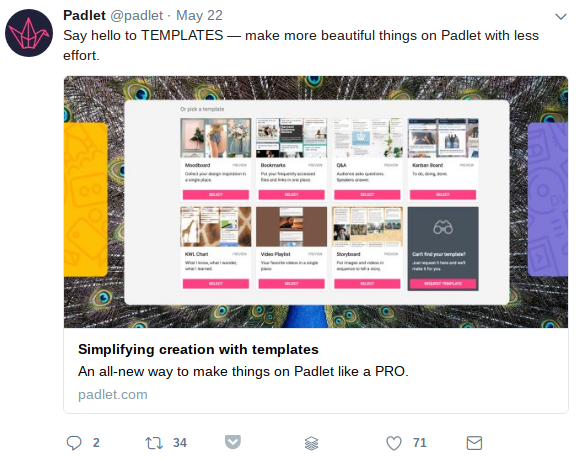
2. You can now create a Padlet using 1 of 5 Formats or 1 of 8 Templates. These Formats and Templates bring new style and versatility to Padlet in the classroom. 


Learn more about Padlet Formats 
here
Learn more about Padlet Templates here.

3. Posts can now be Color-Coded with one of 6 different colors regardless of the type of Padlet. Colors add another way to organize and categorize posts in collaborative Padlets. 


Learn more about Coloring Posts here.

Please share how what you love about Padlet or how you use it with students in the comments below.


Get Students Creating with These Creativity Resources on the Web

Supporting the 4Cs in Learner-Centered Classrooms

Creativity - Students demonstrate creative thinking, construct knowledge, and develop innovative products and processes using technology. Students will:
  • Apply existing knowledge to generate new ideas, products, or processes.
  • Create original works as a means of personal or group expression.
  • Use models and simulations to explore complex systems and issues.
  • Identify trends and forecast possibilities.


You can't use up creativity. The more you use, the more you have.”― Maya Angelou

I have long believed that my content should support the development of student skills connected to the 4 Cs or collaboration, communication, critical thinking, and creativity. 

This week, I am working on updating my list of Web Resources connected to Creativity Skills for teachers, parents, and students. I have had a great deal of help from my PLN in the past and I am hoping you can help with this updated Google Doc.


Have an additional resource or want to share how you use one of the tools? Visit this Creativity Padlet to share or post a reply in the comments below.

Additional Creativity Resources

Top Posts