Showing posts sorted by relevance for query Pear Deck. Sort by date Show all posts

Pear Deck Partners and The Pear Deck Orchard

Spring is a great time to learn & explore something new! April 17th, 2023

If you’ve followed my blog over the last several years, you might remember that I occasionally create challenges for myself to explore, learn, and share what I discover. Last December, I challenged myself to explore 24 Days of Teaching and Learning Resources.

My challenge for April is to explore something new each day and share what I discover. Hopefully, I won't let you or myself down! (April Challenge Update Doc)

I've used Pear Deck for quite a few years, but I've primarily used or created my own slide decks. Today I am exploring the Pear Deck Content Orchard and some of the ready-to-use lessons supported by some amazing partners including, NASA, Boston Museum of Science, Adobe, Newsela, Canva, PBS Newshour Classroom, and more.

Pear Deck Student Paced for Remote Learning


Pear Deck is an incredible resource that supports student engagement and student voice through formative assessment, exit slips, reflections, interactive questions, discussion prompts, and more. Teachers can use Pear Deck to add interactive questions to any presentation. Pear Deck can be used during live Remote Learning Experiences using Zoom or Google Hangout or students can explore the deck on at their own pace using the student-paced mode.

Pear Deck Resources


Pear Deck is a tool that integrates with existing slide decks to add interactive elements that allow the viewers to engage during the presentation. Interactive slides include: 
  • Multiple choice
  • Text entry 
  • Numeric entry 
  • Drawing 
  • Draggable 

Curious about Pear Deck? How can you use this incredible resource with students?
We've put together this post to connect you to some great resources and ideas.

Getting Started
Creating and Presenting
Lesson’s Over. What’s Next?
Additional Pear Deck Resources
Bonus: Pear Deck Vocabulary - Flashcard Factory
More Great Pear Deck Resources
Upgrade
  • Click here to upgrade to 3 months of the Premium Account Access.

I've also blogged a few times about Pear Deck. You can explore those posts here. 


What are your favorite resources connected to Pear Deck? Please share in the comments below. 

Pear Deck Awesomeness - Pear Pop and More


Pear Deck is an awesome tool that allows educators to create interactive questions to engage students. Educators can create and add questions to a Google Slide Deck or a Powerpoint.

I've been a huge fan of Pear Deck for several years and I was super excited to learn about the new Pear Deck Pear Pop option for quick interactive feedback collection from students. Pear Deck Pop now allows educators to quickly create a prompt without using Google Slides or Powerpoint.
Pear Deck Pop is only available on Premium Accounts. You can learn more about Pear Deck Pop here.

HyperDocs and Pear Deck - Student Voice and Student Engagement

We recently organized and hosted nine lunch-n-learns sessions with our staff connected to student voice with Pear Deck as the featured resource. We used the Pear Deck Add-on to create the presentation. Our slide deck placed staff in the role of students to demonstrate the interactive features. Our theme was animals and our staff loved it! 

I also used Pear Deck with my students as part of my substitute plan when we were meeting with staff. I've been using Pear Deck with my students for most of the year and I decided to complete a student-paced HyperDoc using Pear Deck for the day's activity. This was the first time I used a self-paced deck with my whole class. (I have done this a few times for absent students.) I loved the idea of sharing Pear Deck with staff while using Pear Deck as part of my substitute plan. The student piece also seemed to go very well. 


Here are a few tips that I shared as we explored Pear Deck with staff.
  • I love the Classroom Climate option. I have this turned on and it is a great way for me to get a quick overview of how my students are feeling. I don't make a big deal about this and I don't think the students even recognize that I am monitoring this. When a student chooses the Red or the Yellow icon, I make sure to stop by and give that student a compliment about something they posted. I don't tell them that I am doing because of the icon they chose and I hope me giving them a quick compliment at some point during the period makes it a bit of a better day. 


  • Every question does not need to be written on a slide. I think it is sometimes important for the students to listen to a verbal question and not just wait to see it on their screen. On this slide, we verbally asked, "What does the fox say?".


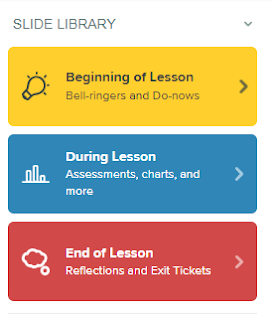
  • The Slide Library in the Pear Deck Add-on is a great place to get started when exploring the interactive features of Pear Deck. The Beginning, During, and End of Lesson templates are a great placed to get inspired. Even when you don't use the templates they are a great place to get ideas on the types of questions you might ask. My personal favorite is "Pretend your friend was absent . . . ". I like the responses my students share when they are answering a question for a friend and not just for me. 


I plan to share a few other quick tips in future posts, so stay tuned. If you have a favorite tip or process connected to Pear Deck, please share in the comments below?

Learn More


12 Days of Techmas Day 10: Pear Deck

12 Days of Our Favorite Resources to Engage Learners

I always try to remember it’s not about the tech, it’s how you use it. This being said, sometimes learning about a new tool or resource will open the door to bigger discussions about, creativity, pedagogy, and learning. Sometimes exploring a new EdTech resource can lead to some incredible learning experiences. 

Day 10 - Pear Deck

Yesterday, I shared Gimkit, one of my favorite game-based formative assessment tools. Today our guest blogger, Chris Skrzypchak is sharing a great tool to help teachers engage students with interactive digital activities. 


Pear Deck is an awesome tool that you can use to engage learners and gather formative data to determine their knowledge and understanding of the content. Pear Deck has been around for a while but has gone through some significant changes in the past year to make it much easier to use especially if you are a Google Slides user. If you have never used Pear Deck before, it’s as easy as adding an add-on to Google Slides. You can get started by following this guide.


The free version of Pear Deck allows the teacher to add interactive response slides into a Google Slide presentation so that students can respond to questions during the presentation making it more interactive and engaging. The teacher can also project anonymized student responses for the class to see as well as lock the slides when presenting. Teachers can use this data to ensure that all students are responding and not just the ones that they are calling on for the answer. With this data, you can gauge whether the class is ready to move on or if you need to review the material more.


While the free version of Pear Deck is good, the premium version of Pear Deck adds some really great additional features. The premium version includes a Teacher Dashboard that can be used to control the presentation and monitor student responses in real time and project individual student responses. You can also share the slide presentation and student responses after you are finished with each student with a feature called Takeaways. You also get some additional response options such as Draggable and Drawing slides.
We are fortunate that our district has purchased the Premium version. This has allowed many of our flipped and blended learning teachers to use another premium feature called Self Paced Mode with their students. Pear Deck’s Self Paced Mode allows the teacher to create a Google Slide presentation with Pear Deck response slides and share it with the students through Google Classroom. Students complete the presentation on their own time and are learning via the slides and responding to the questions. The teacher is able to monitor the student’s responses and deliver the appropriate follow-up content based on the data received.

If you would like to see some examples of Pear Deck slide presentations, check out Pear Deck’s Orchard.


Learn more about the many great features of Pear Deck with using out Pear Deck Tips and Resources Document.

If you’ve used Pear Deck in your classroom, please share your story in the comments below. If you have questions or other ideas, the comments below are waiting for you. 

(Links to Each Day's Resource as They Become Available)

Guest Blogger Tania Moneim will share another resource tomorrow. No need to jump in the Delorean and had back to 2018. We are ready to move forward in 2019!


Chris is an Instructional Technology Coordinator at Waubonsie Valley High School in Aurora, IL. Chris enjoys helping students and teachers learn how to best utilize technology to better their lives. Twitter: @biztechtchr

Free Interactive Pear Deck Templates for Google Slides and PowerPoint


Pear Deck is an incredible tool for student engagement. Pear Deck works with Google Slides and PowerPoint to add interactive questions to existing slides. Teachers can also explore and use some incredible free existing templates.

Pear Deck Adds New Critical Thinking Questions Templates


Pear Deck is an incredible resource that supports student engagement and student voice through formative assessment, exit slips, reflections, interactive questions, discussion prompts, and more. 

The Pear Deck Google Slides Add-on integrates with existing slide decks to add interactive elements that allow the students to engage with the teacher during a presentation or self paced exploration. Existing Google slides can be supercharged with interactive features and questions including:
  • Multiple choice questions
  • Text entry questions
  • Numeric entry questions
  • Drawing interactive questions
  • Draggable interactive questions

The Pear Deck Add-on also has a Slide Library of templates that can be inserted into a new or existing Google Slide Deck.

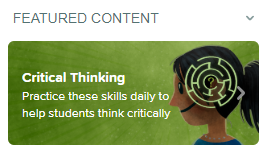
Pear Deck recently added new Critical Thinking slides to the add-on. I am incredibly excited to explore these newly updated slides in the Pear Deck Add-on. 
There are 9 new editable slide templates. We''ve created this presentation to show each of the new slides. 


If you would like to explore the interactive questions from a student perspective we’ve created this  Student Paced option for your exploration.
Additional Pear Deck Resources

Let's me know if you have any questions?

Pear Deck Orchard - Partnerships to Support Student Engagement

If you've explored Pear Deck as a resource, you know that it is a great resource to engage students in interactive lectures and activities. You can take any existing presentation and use the Pear Deck features to increase student engagement as you gather formative feedback. 

Did you know that Pear Deck also has partnered partnered with Newsela, PBS NewsHour, ThinkCERCA, Canva, and more organizations to create and share a collection of templates, quick-start activities, and ready-to-teach lessons?

Pear Deck Now Lets Teachers Record and Upload Audio


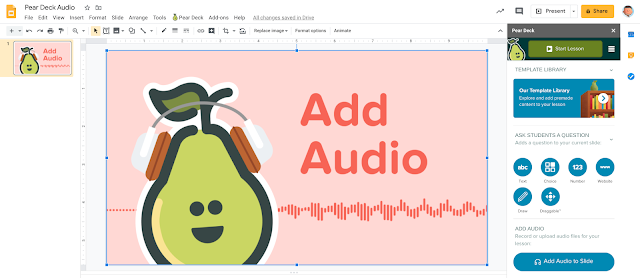
Pear Deck just released the ability to add audio and it is awesome. Probably one of the easiest ways I've discovered to add audio to your presentations and interactive slide activities. Right now this is just part of the Google Slides Pear Deck Add-on, but I am thinking it will soon be an option in PowerPoint.
How awesome is it that you can now share your voice with your students. Connections matter and this is another great way that you can make sure your students are connected and engaged! I also love that you can upload music and other audio files to supplement images and text. 

Pear Deck PD Choice Board - Advanced Features


Pear Deck is an incredible tool that educators can use to add interactive questions for students to any presentation. I've primarily used Pear Deck with Google Slides, but it also works with PowerPoint. If you are curious to learn more about how I use Pear Deck with my students, check out these blog posts.

I recently explored a great post by Pam Huber about Coaching Choice Boards. It is an awesome way to deliver professional development. I was inspired to try something similar with a focus on one of my favorite EdTech resources, Pear Deck.

Getting Started - Remote Learning, Pear Deck, and More

 Welcome to Class! 
Remote Learning Style!

This is a year like no other! You've probably heard this a time or two, but how is it changing how we teach and learn? 

I'll let you know what I think in a few month's, but for now I am just trying to start the year without being in the classroom. We are full remote for a bit.  Today I wanted to share one piece of how I am trying to get to know my students while I introduce them to the way we are going to do learning.

Have You Seen the New Pear Deck Trivia Templates?


Pear Deck has become one of the top tools I use to engage students in both face to face and remote learning experiences. I put together a PD Choice Board to help teachers explore all the awesome that is Pear Deck.


Today I discovered a new bit of awesome in the Pear Deck templates. Pear Deck recently shared a new template for creating interactive trivia games with students. Trivia is a great way to engage students in essential topics or a great way to take a break and have some fun. 


Be sure to check out the template and ideas on using trivia with students on the Pear Deck Blog. 


How would you use trivia to engage students? Please share your thoughts in the comments below. 

Exploring FlashCard Factory by Pear Deck


I recently discovered Pear Deck FlashCard Factory and gave it a test run with my students. While not perfect, my students loved it and are begging me to use it again as soon as possible. (I have mostly High School Seniors in class this year.)

Our first experience with Pear Deck Vocabulary earns a thumbs up!

Long Story Short
In Flashcard Factory student pairs are randomly assigned a vocabulary term and definition. They then create a new flashcard that includes a written example and a digital sketch. They collaborate and when finished submit the flashcard. They are then assigned another term and repeat the process until the teacher ends this 'Production Phase. We then approve or reject the cards during a whole class discussion in the 'Quality Control Phase'. Finally, the approved cards are exported to Quizlet as a study set.

How To
Pear Deck has an incredible step by step tutorial to create your Flashcard Factory, so I won't bore you with the details of putting one together.


The Results

What we liked?
  • It connects to Quizlet. You can copy a Quizlet set directly into the creation of the Flashcard Factory
  • It exports the "approved cards" to Quizlet. Here is a sample exported Quizlet from our activity.
  • The whole class discusses each submitted flashcard and we approve or reject the cards. We enjoyed the discussion. 
  • The students enjoyed the competitive aspect connected to be on the day or the night shift. 
  • The students liked the collaboration between pairs. They felt it helped them better understand and apply the vocabulary. 
What could be improved?
  • Once the initial group page is passed, there is no way to I could see who was on which team. 
  • Some students really struggled with drawing with the touchpad or a mouse. (We don't have touchscreens yet.)
  • There is no data to connect students to the flashcards they created. You need to have students admit that they are the creators when the card is projected if you want to know who owns what. 
  • Only the teacher can approve or reject. We would love to have the ability to let students vote on their screens. 
  • A few student screens froze in the drawing phase during each class. We lost those drawings and the students had to start over. We did not master a solution to this yet. 
Have you tried out Pear Deck Vocabulary Factory? How did it go? Please share your thoughts in the comments below.

Additional Connections


Awesome Updates to Pear Deck Add-on for Formative Assessment

Pear Deck recently announced a new update to their Google Slides Add-on. I've just begun to explore this but I wanted to share 3 quick sample self-paced lessons to demo the new options from a student perspective. The first 2 just use the unedited template slides from the Add-on, the third is an actual exit slip or reflection connected to the first two. We made these to demo all of the new slide templates, of course, a teacher would not need to use all of the slide templates in their own presentations at the same time like we did to model this. 

Take a look and let us know what you think? Feel free to share with your PLN if you think they might be interested, the more feedback the better?

The Pear Deck Orchard also has some nice Sample Interactive Google Slide Decks you can explore. 


Earth Day 2021 HyperDoc


Last week I shared a collection of resources connected to Earth Day and I promised that I would share any lessons or ideas I created connected the resources. I am planningto use Pear Deck and Google Slides to facilitate a student centered HyperDoc connected to Earth Day. For another class, I am going to use one of the Google Applied Digital Skills Earth Day Activities.

Earth Day 2022 - Exploring Our Planet Student Activity

Last week I shared a collection of resources connected to Earth Day and I promised that I would share any lessons or ideas I created connected the resources.

For one of my classes, I am planning to use Pear Deck and Google Slides to facilitate a student centered HyperDoc connected to Earth Day. For another class, I am going to use one of the Google Applied Digital Skills Earth Day Activities.

Earth Day 2023 - Exploring Our Planet Student Activity

I recently shared a collection of resources connected to Earth Day and I promised that I would share any lessons or ideas I created connected to the resources.

For one of my classes, I am planning to use Pear Deck and Google Slides to facilitate a student-centered HyperDoc connected to Earth Day. For another class, I am going to use one of the Google Applied Digital Skills Earth Day Activities.

Pear Deck - Halloween Puzzles and More


Have some fun this Halloween with some riddles, rebus puzzles, trivia, drawing challenges, and more using a free Google Slides Pear Deck Template. 

Halloween Puzzles and More (Pear Deck Google Slides Template)

(Answers to puzzles can be found in the slide notes.)

Special thanks to Pear Deck who got me started with this template and Liz Cowan for sharing some great activities on Twitter.

You can chop this into smaller pieces or also use it without the Pear Deck questions as a class presentation/discussion. Please feel free to copy/modify if this is something your students might enjoy!

If you have a Haloween resource or idea for the deck, please drop it in the comments below. #HappyLearning 

Planners, Calendars, and Agenda Templates for the 2022 - 23 School Year

Many educators have upped their digital agenda game over the last few years. I personally keep a general unit overview in a Google Doc. Daily, I display an agenda slide at the start and end of class. I also use Google Classroom to post assignments and due dates. 

Today I wanted to share some agenda resources that we can use to continue to support students as we get ready to head back to our classrooms with our students in 2022. 

Top Posts